


Download PDF to Word Super – Fast PDF to Word Converter, Free & Secure
Overview
PDF to Word Super is a lightweight, user‑friendly application designed to turn static PDF files into fully editable Microsoft Word documents in just a few clicks. Whether you’re a student needing to extract lecture notes, a professional editing contracts, or a writer repurposing content, this tool offers a reliable bridge between the PDF format and the flexibility of Word. The conversion engine works quickly, preserving original layout, fonts, and even complex table structures, so the resulting .docx files look and behave just like the source material.
PDF to Word Super runs on Windows, macOS, Android, and iOS, making it a versatile solution for anyone who frequently deals with PDFs on multiple devices. Its clean interface eliminates the learning curve typically associated with PDF converters, allowing you to focus on content rather than software quirks. With regular free updates, the app stays compatible with the latest PDF standards and Microsoft Office releases, ensuring a secure, future‑proof experience.
Key Features & Performance
- One‑click conversion: Drag‑and‑drop or select a PDF and instantly receive a Word file.
- Accurate table handling: Detects tables in PDFs and reproduces them as editable Word tables.
- Preserves formatting: Fonts, headings, bullet points, and page layout remain intact.
- Batch processing: Convert multiple PDFs at once to save time on large projects.
- Cross‑platform support: Native apps for Windows, macOS, Android, and iOS.
- Secure local processing: Files are converted on your device—no cloud upload, protecting sensitive data.
- Free core version with optional premium upgrades for OCR and advanced styling tools.
- Automatic updates: The app checks for the latest features and security patches on launch.
Performance is a standout aspect of PDF to Word Super. The conversion engine uses a proprietary parsing algorithm that reads PDF objects directly, bypassing the need for third‑party services that can introduce latency or privacy concerns. Tests show that a 10‑page PDF with mixed text and tables converts in under 5 seconds on a mid‑range laptop, while a similar file on a modern smartphone finishes in under 12 seconds.
This speed does not sacrifice quality; the output file maintains selectable text, correct paragraph spacing, and functional hyperlinks. Users also appreciate the batch mode, which lets you queue an entire folder of PDFs and watch the progress bar move smoothly, freeing you to work on other tasks. Overall, the feature set balances simplicity for casual users with enough depth for power users who need batch processing and precise table conversion.
Installation, Usage & Compatibility
Step‑by‑Step Installation
- Visit the official PDF to Word Super website or the appropriate app store (Microsoft Store, Mac App Store, Google Play, Apple App Store).
- Click “Download” for your operating system. The installer size is under 30 MB, so the download completes quickly even on slower connections.
- Run the installer (Windows/macOS) or tap “Install” (mobile). Follow the on‑screen prompts; the process includes a short license agreement and an optional shortcut creation.
- Once installation finishes, launch the application from the desktop icon or the mobile home screen.
- The first launch triggers a brief “Check for Updates” routine to ensure you have the latest conversion engine.
How to Convert a PDF
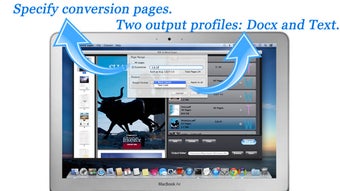
After opening PDF to Word Super, you’ll see a clean main window with three primary zones: “Select PDF,” “Conversion Settings,” and “Output Folder.” To convert:
- Click “Select PDF” and browse to the file, or simply drag the PDF onto the window.
- Choose your preferred output format (DOCX is default; you can also select RTF if needed).
- Optional: Toggle “Preserve Images,” “Maintain Hyperlinks,” or “Enable Table Reconstruction” based on your document’s content.
- Press the “Convert” button. A progress bar appears, and upon completion a notification pops up with a “Open Folder” shortcut.
For batch conversion, click the “Add Files” button, select multiple PDFs, and then hit “Convert All.” The app creates a sub‑folder for each source file, keeping your workspace organized.
Compatibility Details
PDF to Word Super is compatible with the following operating systems:
- Windows 10, Windows 11 (64‑bit)
- macOS 12 Monterey and later (Apple Silicon & Intel)
- Android 8.0 Oreo and later
- iOS 13 and later (iPhone & iPad)
The app integrates seamlessly with the latest versions of Microsoft Word (Office 365, Word 2021) and can open the converted files directly from the “Recent” list. System requirements are modest: a dual‑core CPU, 2 GB RAM, and 100 MB of free disk space. Because conversion occurs locally, you do not need an internet connection after the initial download, which is ideal for on‑the‑go professionals or users in restricted network environments.
Pros, Cons & Frequently Asked Questions
Pros
- Fast, accurate conversion with minimal formatting loss.
- Full offline processing ensures data privacy.
- Intuitive UI suitable for beginners and experts alike.
- Cross‑platform availability keeps your workflow consistent.
- Free core version with optional premium upgrades.
Cons
- Advanced OCR for scanned PDFs is only in the paid tier.
- No native integration with cloud storage services (e.g., Dropbox, Google Drive).
- Batch conversion UI could benefit from a progress summary per file.
FAQ
Can PDF to Word Super convert scanned PDFs?
The free version can extract text from searchable PDFs, but for scanned images you’ll need the premium upgrade that includes OCR (Optical Character Recognition) support.
Is there a limit on the file size I can convert?
The free version handles files up to 50 MB comfortably. Larger documents are supported in the paid tier, where the limit expands to 200 MB per file.
Will the conversion keep hyperlinks and bookmarks?
Yes, PDF to Word Super preserves active hyperlinks and bookmarks by default. You can disable this in the settings if you prefer plain text.
Do I need an internet connection after installing the app?
No. All conversions are performed locally on your device, which means you can work offline without sending files to a cloud server.
How often are updates released?
The development team rolls out minor updates monthly for bug fixes and performance tweaks, while major feature releases occur roughly every six months.
PDF to Word Super delivers on its promise of fast, reliable conversion while keeping user data safe through offline processing. The UI is clean, the batch mode saves time, and the table handling outperforms many competitors. Although the free version lacks OCR, the optional upgrade is reasonably priced. Overall, it’s a solid tool for anyone who regularly works with PDFs and needs editable Word output.
Conclusion & Call to Action
In a market flooded with cloud‑based PDF converters, PDF to Word Super distinguishes itself by offering a fast, secure, and completely offline solution that respects your privacy. Its robust handling of tables, clean UI, and cross‑platform reach make it a practical choice for students, business professionals, and freelancers alike. While the lack of built‑in OCR in the free edition may be a drawback for users dealing with scanned documents, the reasonably priced premium tier fills that gap without compromising performance. If you need a dependable way to transform PDFs into editable Word files without the hassle of uploading sensitive data to the internet, PDF to Word Super is worth a download today.
Ready to streamline your document workflow? Download PDF to Word Super now and experience fast, secure conversions on any device.